

Control Sonos from KNX
Once a Sonos player is imported as a 1Home device, you can map its commands and status onto KNX group addresses
Table of contents
Add a Sonos mapping
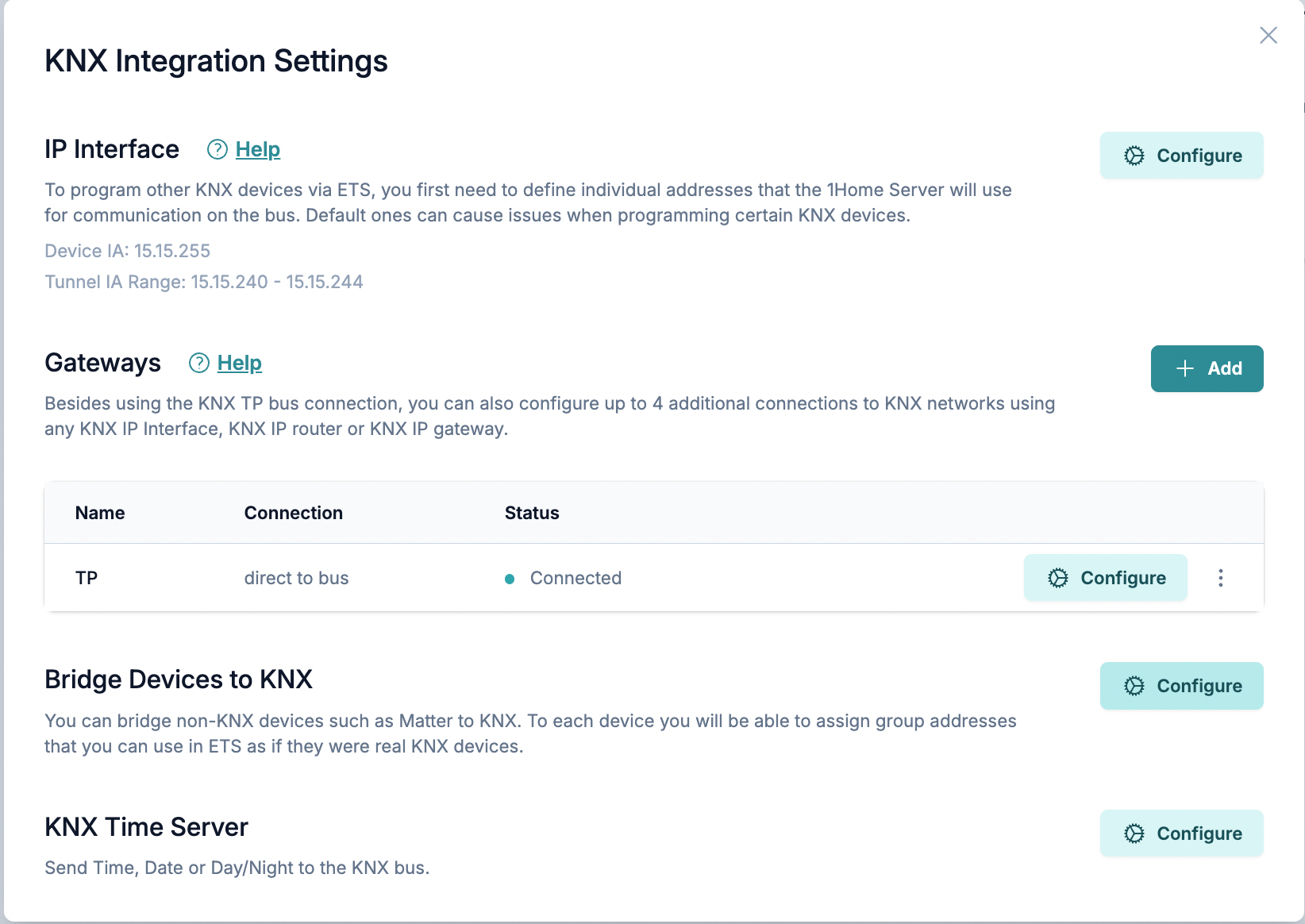
Navigate to Integrations → KNX → Configure, find Bridge Devices to KNX section and click Configure. In popup click on + Add Device and select the Sonos player you want to map — the mapper shows the full list of status and command group objects listed above, ready to be assigned a group address.
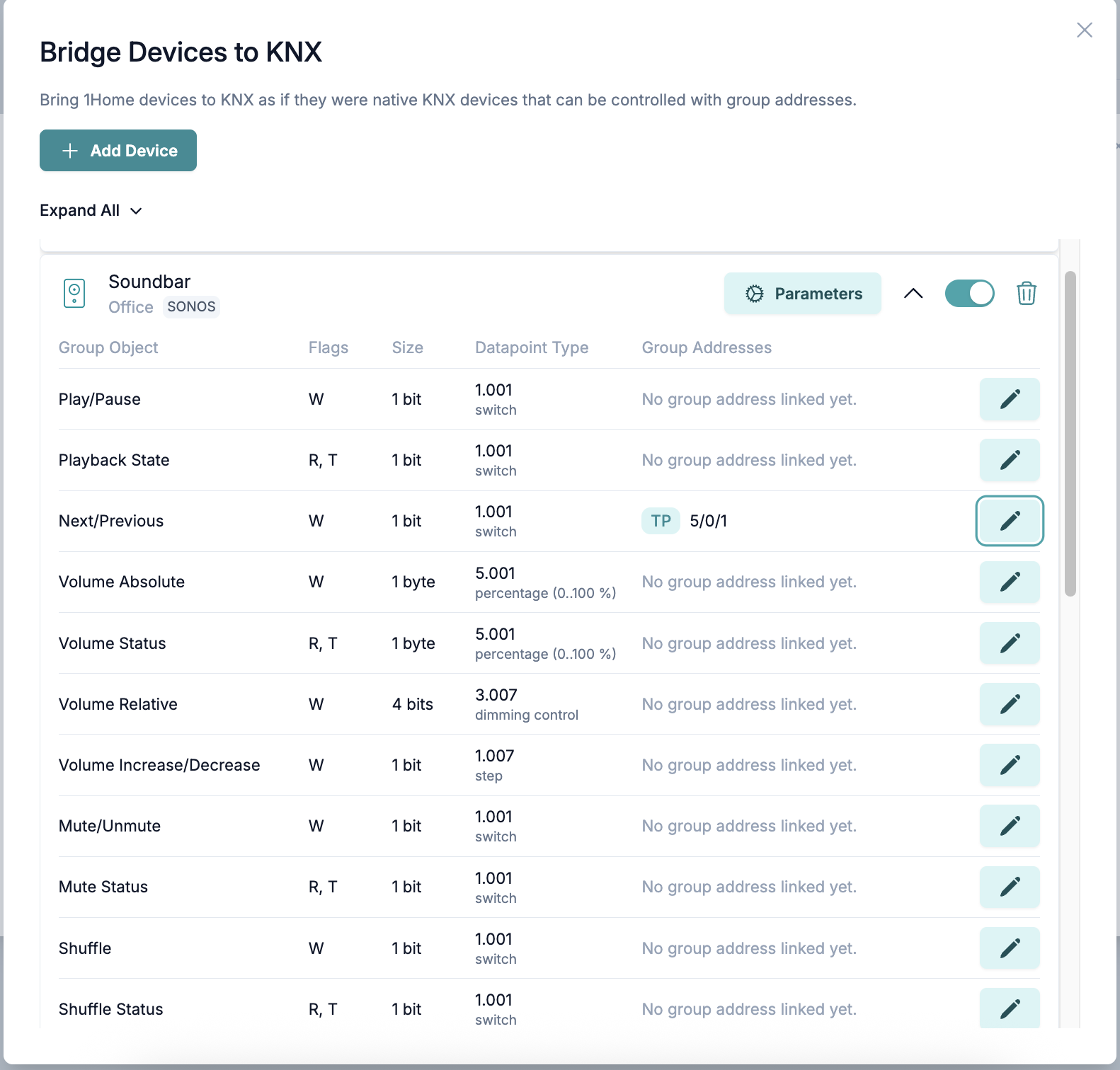
For each group object you want to use, assign a KNX group address (and a gateway, if you have more than one). You do not need to assign all of them — unassigned group objects are simply inactive.
What you can map
The 1Home KNX mapper exposes two kinds of group objects for each Sonos player: status objects that push Sonos state out to KNX, and command objects that take KNX writes and turn them into Sonos actions.
Status (Sonos → KNX)
These group objects send a value onto KNX whenever the corresponding state on the player changes. They can also respond to KNX read requests on their group address.
| Group object | DPT | Notes |
|---|---|---|
| Playback State | 1.001 | 1 = playing, 0 = paused |
| Volume | 5.001 | 0–100 % |
| Mute | 1.001 | Boolean |
| Shuffle | 1.001 | Boolean |
| Repeat | 1.001 | Boolean — repeat-all |
| Repeat One | 1.001 | Boolean — repeat-one |
| Crossfade | 1.001 | Boolean |
| Source Name | 16.001 | Music source (e.g. Spotify, Apple Music) |
| Source Service Name | 16.001 | Display name of the music service |
| Current Item Name | 16.001 | Current track or item name |
| Current Item Duration | 12.001 | Seconds |
| Current Item Offset | 12.001 | Current playback position in seconds |
| Next Item Name | 16.001 | Name of the next queued item |
DPT 16 is limited to 14 characters
Source Name, Source Service Name, Current Item Name, and Next Item Name are sent as DPT 16.001 strings, which have a 14-character maximum. Longer names are truncated before being written to the bus.
Commands (KNX → Sonos)
These group objects receive a KNX write and trigger the corresponding action on the Sonos player.
| Group object | DPT | Effect |
|---|---|---|
| Play/Pause | 1.001 | 1 plays, 0 pauses |
| Next/Previous | 1.001 | 1 skips to next track, 0 returns to previous |
| Volume Absolute | 5.001 | Set volume to the written value (0–100 %) |
| Volume Relative | 3.007 | Adjust volume by the signed step (control + 3-bit step code) |
| Volume Increase/Decrease | 1.007 | 1 steps volume up, 0 steps volume down |
| Mute/Unmute | 1.001 | 1 mutes, 0 unmutes |
| Duck/Unduck | 1.001 | 1 ducks for the configured duration, 0 restores immediately |
| Shuffle | 1.001 | Toggle shuffle |
| Repeat | 1.001 | Toggle repeat-all |
| Repeat One | 1.001 | Toggle repeat-one |
| Crossfade | 1.001 | Toggle crossfade |
Trigger values for boolean commands
All boolean commands — the toggles (Shuffle, Repeat, Repeat One, Crossfade) and the combo controls (Play/Pause, Next/Previous, Mute/Unmute, Duck/Unduck, Volume Increase/Decrease) — can be configured on the mapping to fire on a KNX write of 1, a write of 0, or either. The default is either.
This is useful when a pushbutton sends both a press (1) and a release (0) on the same group address and you only want one edge to act — for example, "toggle shuffle on press, ignore the release", or "play on press, do nothing on release".
Volume step with KNX
The step size used by Volume Increase/Decrease is configurable per mapping, as a percentage of the 0–100 volume range. The default is 5 %.
Ducking with KNX
The duck duration is configurable per mapping, in seconds. The default is ten seconds.
Write 1 to the Duck/Unduck group address to drop the Sonos volume; the speaker holds the lowered level for the configured duration and then automatically restores the previous level. You don't need to send a separate write — that happens on its own.
If you want to cut the ducking short, write 0 to the same Duck/Unduck group address.
Extend Sonos control with Automations
A handful of Sonos capabilities are reachable from automations but not from the KNX mapper directly — there is no KNX group object for them:
Load Favorite/Load PlaylistModify Group MembersPlay Audio Clip/Play Custom Audio ClipSeek/Seek Relative
For these, trigger an automation from KNX (for example, via a group-address trigger) and call the action from inside the automation. See Working with KNX in Automations for that pattern.