

Lua Script
Handle complex customer requests using Lua Scripting.
🎬 Video tutorial
There is no better way to learn how Lua works in 1Home then to watch a detailed walkthrough.
Table of contents
Where can you create your Lua scripts?
You can use Lua Scripting in your 1Home Automations.
There are many ways in how to trigger the Lua Script.
You can use any triggers in the When block of your automation. Some examples:
- Every minute
- Upon receiving KNX telegram
- On Sunrise/Sunset or specific hour or time of the day
- ...
See When Block to find all options.
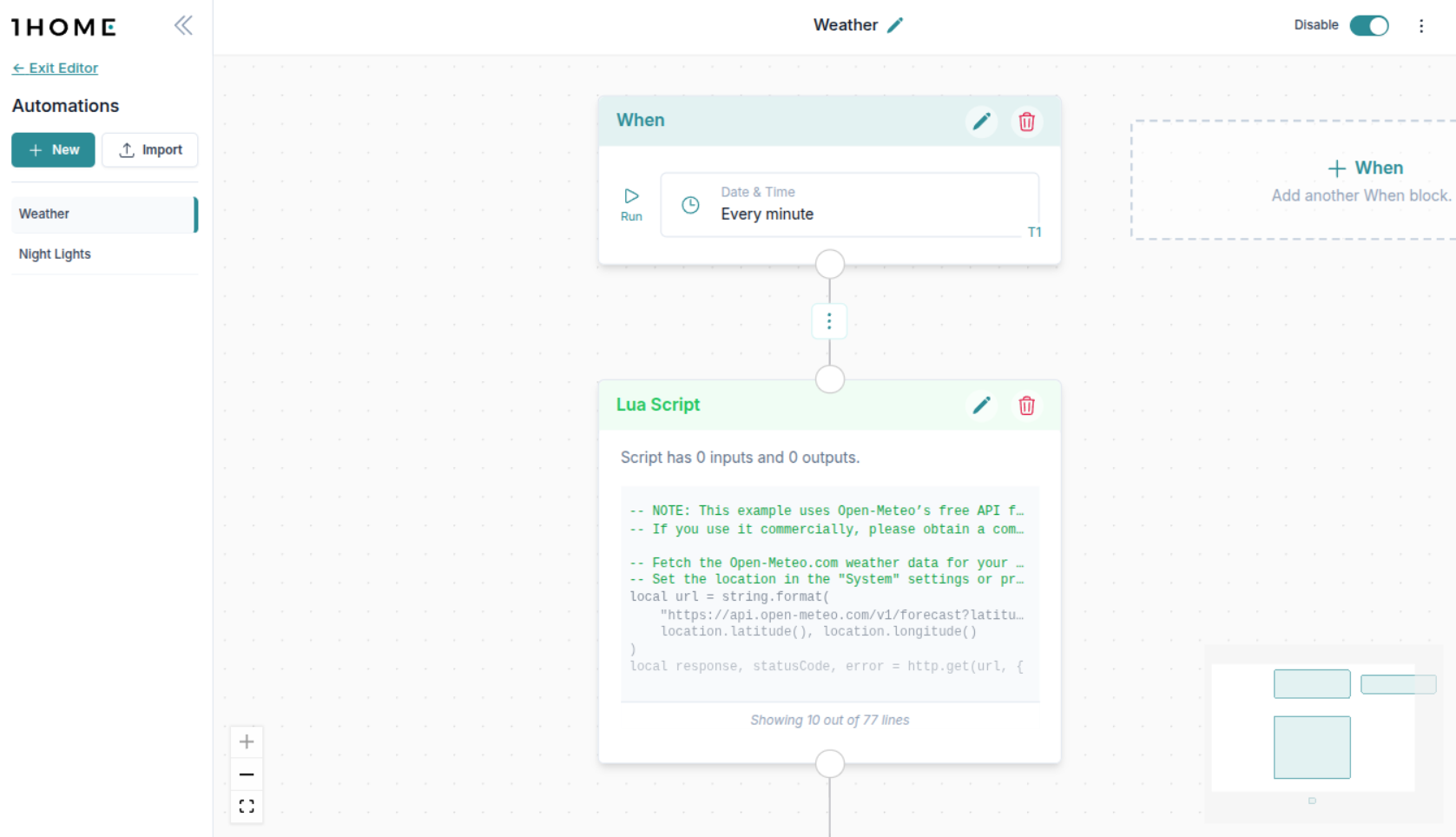
After adding a trigger, you add the Lua Script block by clicking the + button.
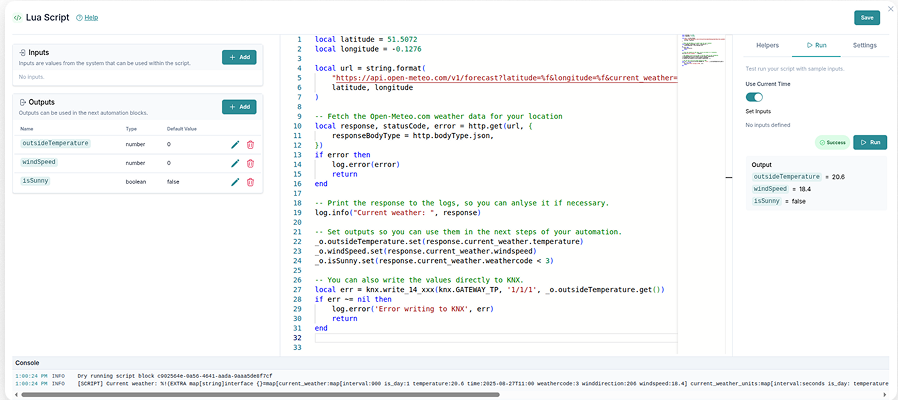
Run Your Script
The first thing you want to do is try and run the script. There are three options on how to run the script:
Use test run- click on theRunbutton in the top right of the Lua editor. This is useful during rapid development for testing.Test the whole automation- When you are done with scripting and want to test the whole screen (see docs on how to test the full automation).Trigger the actual automation from your system- this would be your normal automation run.
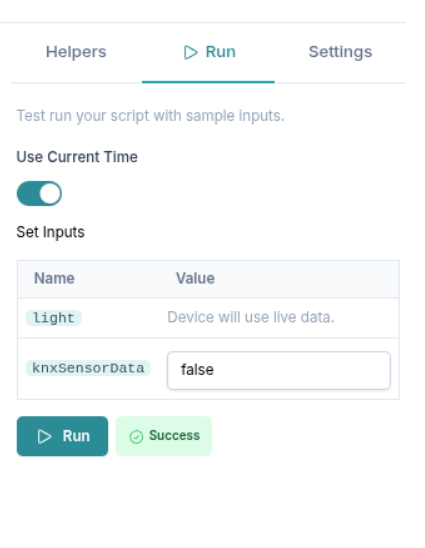
Test Running the Lua script
You will see the logs printed in the Console at the bottom.

Introducing Helpers - What can I do with Lua?
We have prepared many different code snippets that help you build your Lua script faster, even if you don't yet know the Lua syntax.
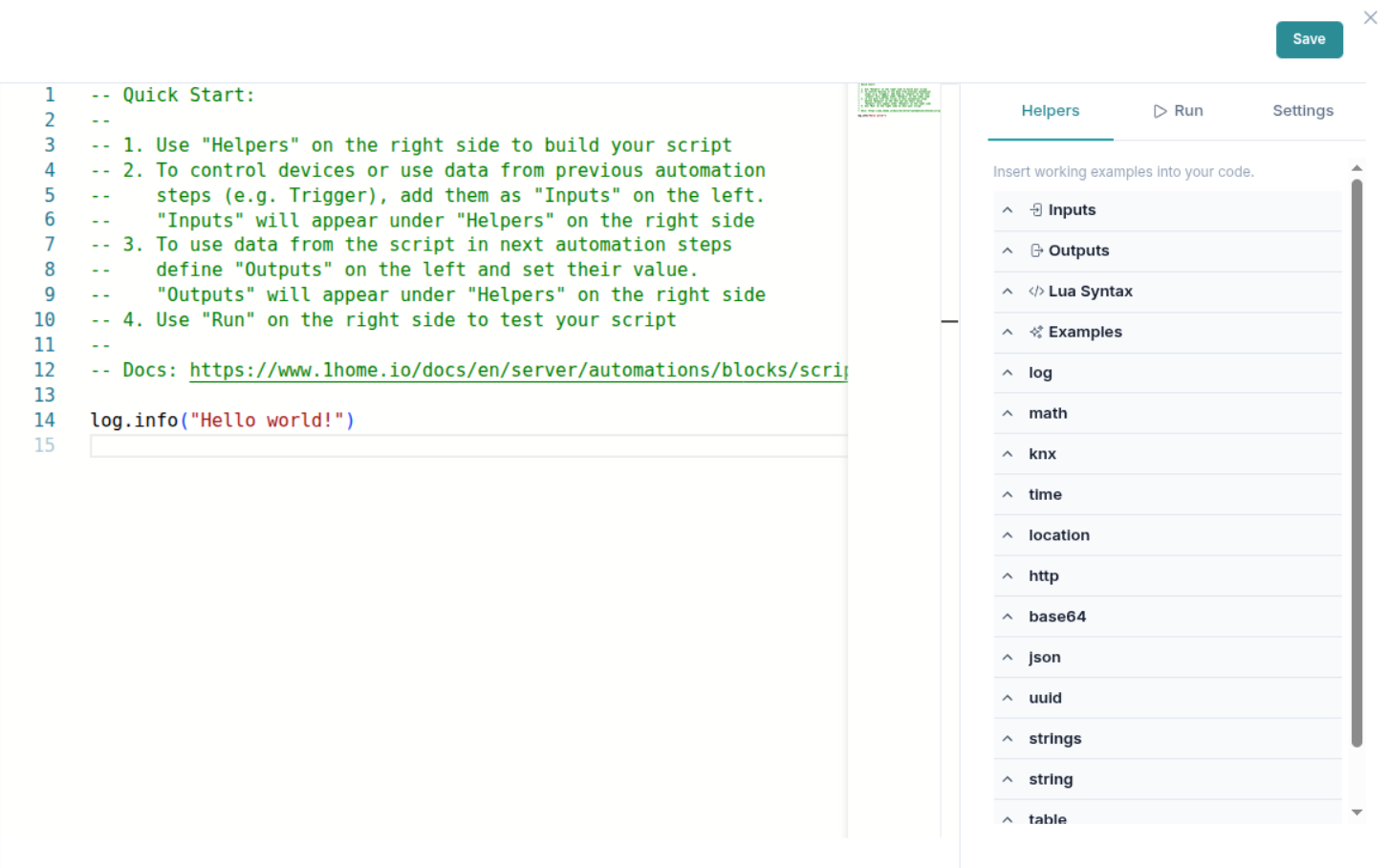
See a list of helper groups in the panel on the right.
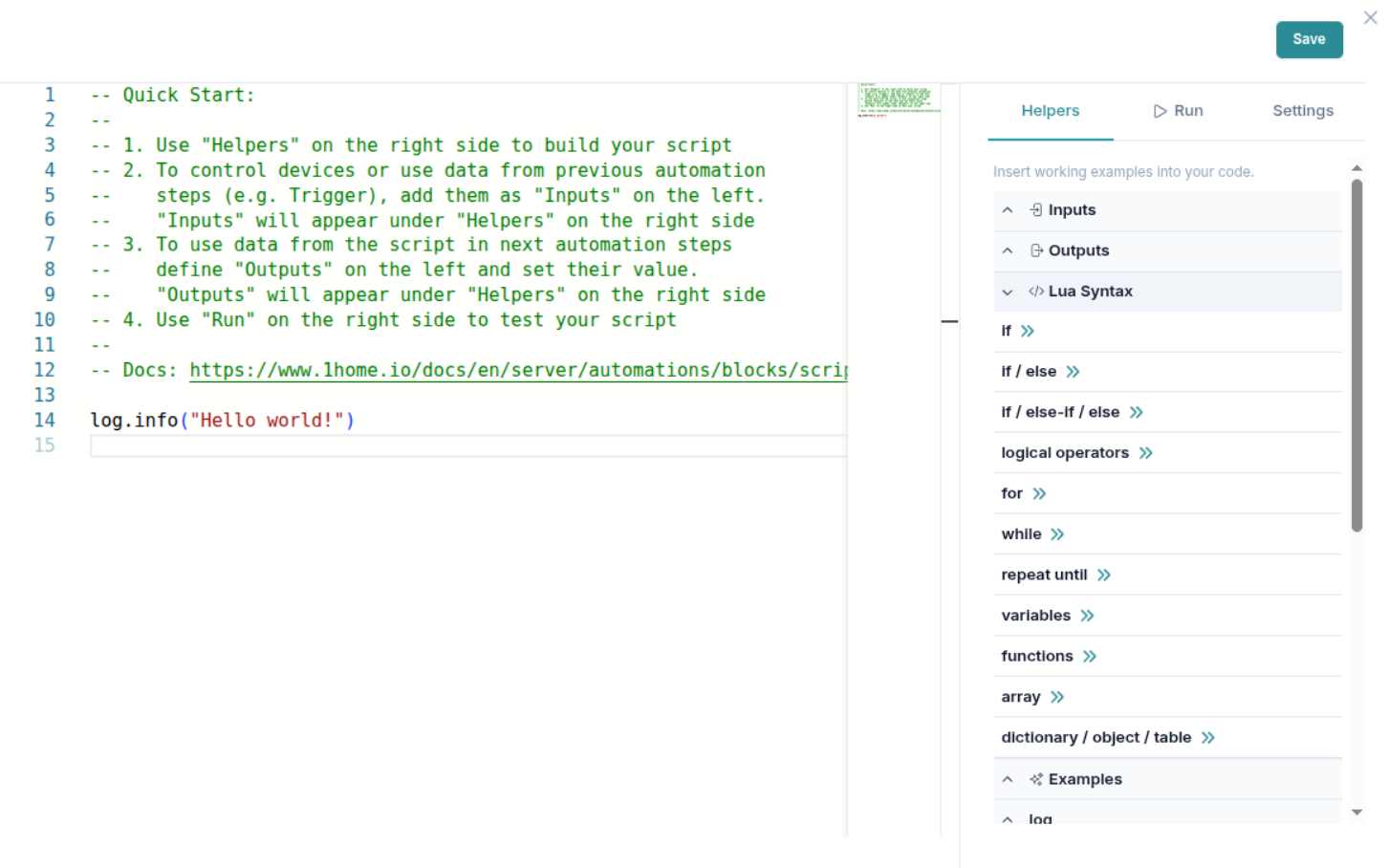
An example of an expanded helper group for Lua syntax.
If you click on the helper, a working code example will be inserted.
The following modules are supported each with many different code snippets:
Inputs- helper functions for your Inputs defined on the left side (see more in the Inputs section)Outputs- helper functions for your Outputs defined on the left side (see more in the Outputs section)Lua Syntax- some common Lua syntax examplesknx- a way to read and write KNX telegramslog,math,time,location,http,base64,json,uuid,strings,string,table,bit32, ...variables- store values to share between automations, see Lua Variables
Inputs
Inputs let you bring the data from the system into your Script.
This includes:
References to devices- e.g. your light that you will be able to set to a specific value or get it's status.Values from previous blocks- for example the value of the trigger (e.g. the value of the group address telegram that triggered the automation).
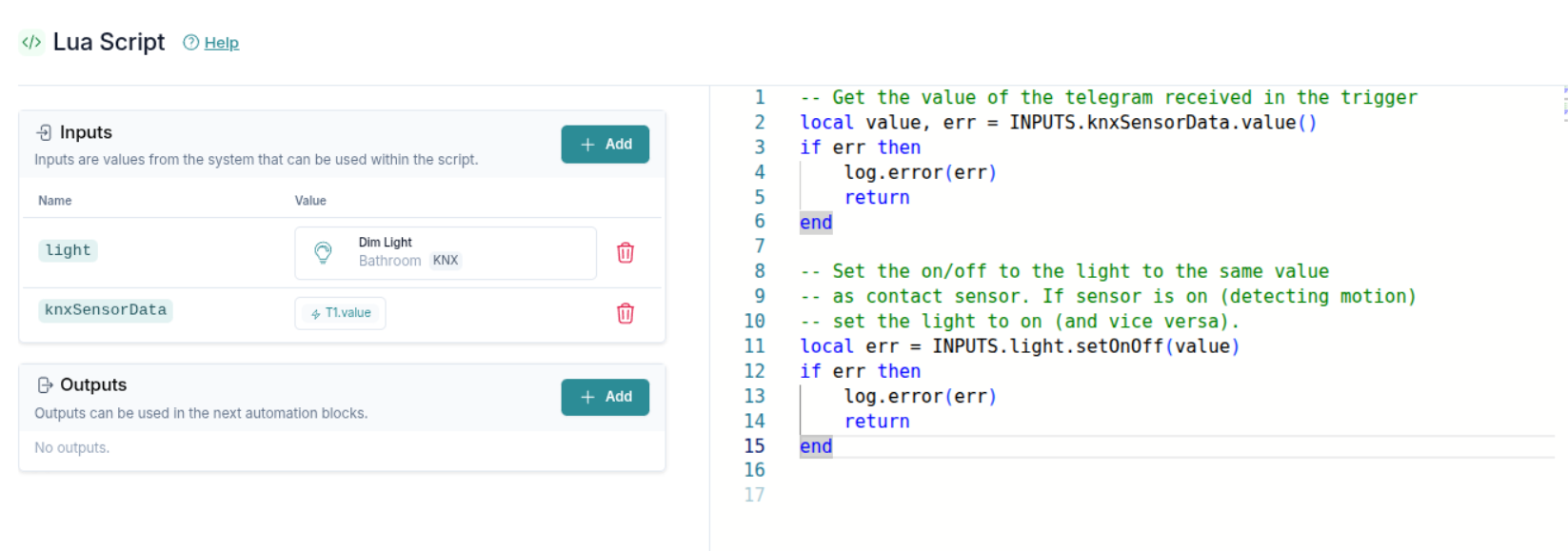
Add your inputs on the left side.
We automatically generate Helpers for all the functions your input support.
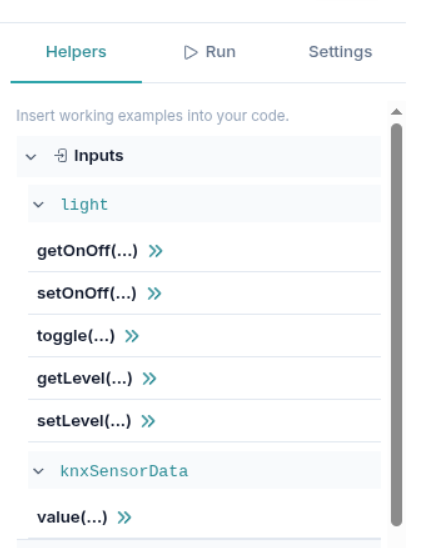
All the function supported by different inputs.
Outputs
Sometimes you want to use Lua script only for things you can't do in the drag and drop Automations editor.
Outputs give you an option to export the results of your Lua script and use it across the system.
You can define your Outputs on the left side of the Lua editor.
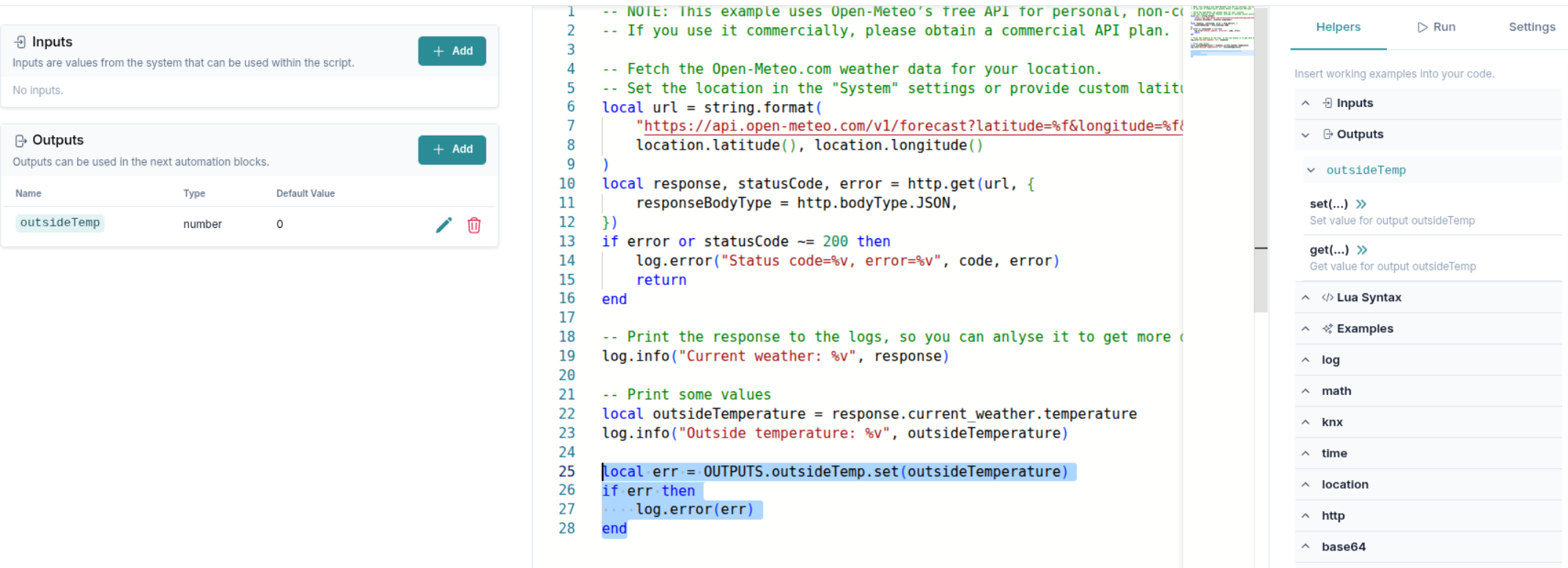
Setting an output in the Lua script.
You can then use your Outputs in the next steps of the automation.
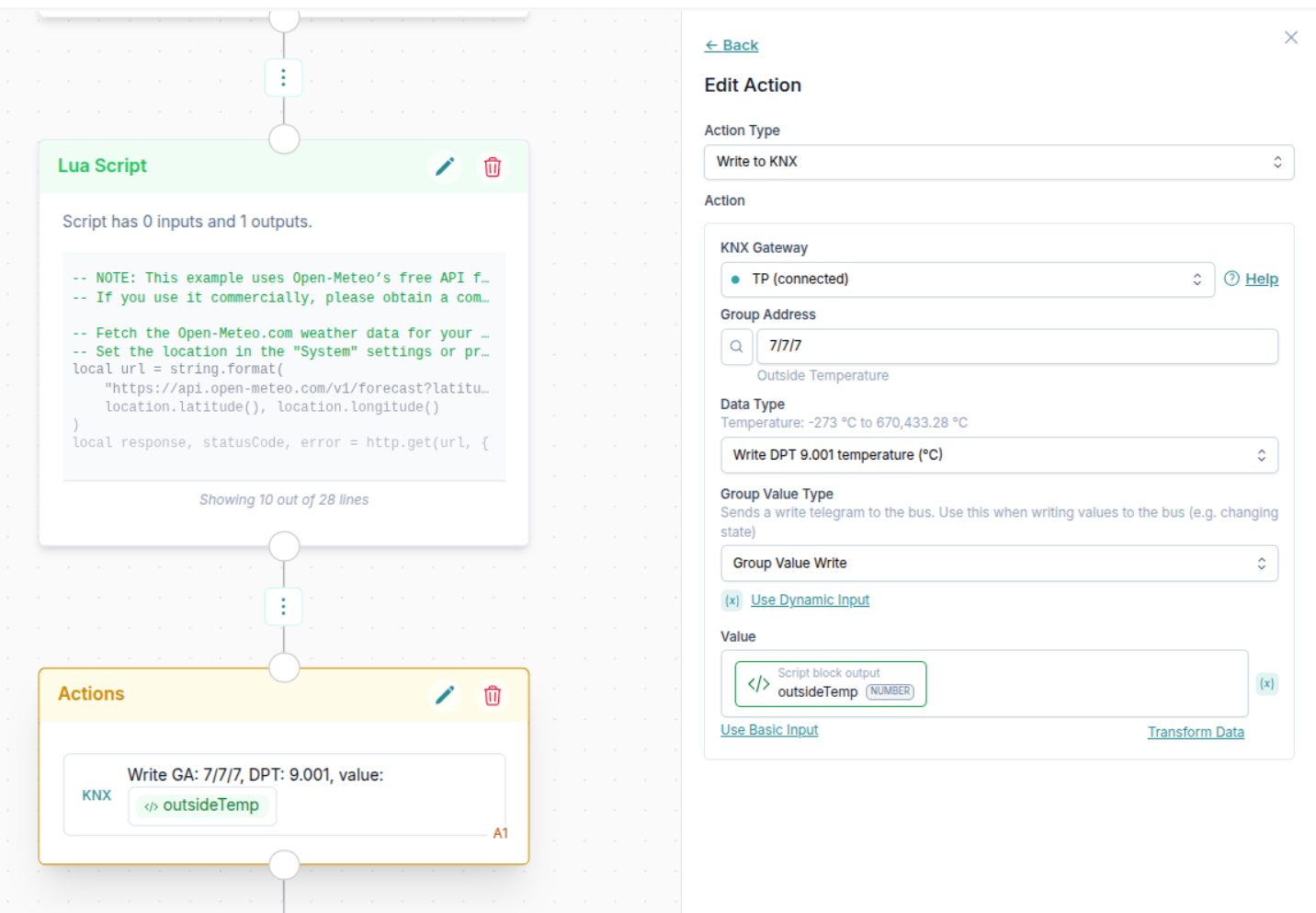
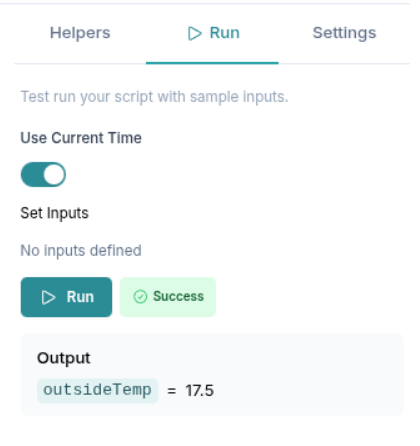
When test running the script, you also have a quick overview of the result that is stored in your output.
Settings
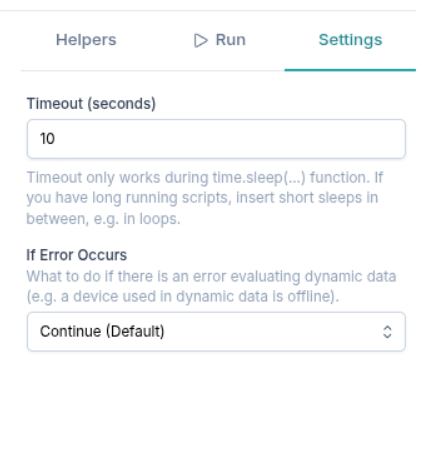
You can set a timeout in seconds for the maximum amount of the time the script should run.
Due to technical limitations, timeout only works during the time.sleep(...) function. If you have long running scripts, insert short sleeps in between, e.g. in loops.
To understand how to make the scripts run in parallel, one at a time etc. see the Change automation Settings page.
Using ChatGPT to help you write code (or similar AI service)
ChatGPT (or other AI services) can be very helpful when writing your code.
For best results, we suggest the following steps:
- Determine what
Helperfunctions you will need for your script. - Add the Helper functions as they are in the 1Home Lua editor. For example if you will write to KNX, you can add KNX write helper function (no need to edit it).
- Ask ChatGPT what code you want to create, and paste in the helpers from the previous step, adding a text above the helpers: "Help yourself with the code examples below to create the desired Lua script."
A template to insert into AI prompt:
Create a Lua script that <INSERT DESCRIPTION OF YOUR IDEA>.

Help yourself with the code examples below to create the desired Lua script:

<INSERT HELPERS THAT YOU WILL USE>
Create a Lua script that <INSERT DESCRIPTION OF YOUR IDEA>.
Help yourself with the code examples below to create the desired Lua script:
<INSERT HELPERS THAT YOU WILL USE>Examples
Find some Lua code examples below. This will help you better understand how the code looks. For more clarity, watch the video at the top of this page.
Change light brightness level
-- NOTE: First add your dimming light as a `light` input on the left side of the editor.

local value = 100
local err = INPUTS.light.setLevel(value)
if err then
	log.error(err)
	return
end
log.info("success")
-- NOTE: First add your dimming light as a `light` input on the left side of the editor.
local value = 100
local err = INPUTS.light.setLevel(value)
if err then
log.error(err)
return
end
log.info("success")Write KNX group address
local value, err = knx.read_5_001(knx.GATEWAY_TP, '1/1/1')
if err ~= nil then
	log.error('Error reading from KNX', err)
	return
end
log.info(value)
local value, err = knx.read_5_001(knx.GATEWAY_TP, '1/1/1')
if err ~= nil then
log.error('Error reading from KNX', err)
return
end
log.info(value)Write outside weather data for your location
-- NOTE: This example uses Open-Meteo’s free API for personal, non-commercial use.
-- If you use it commercially, please obtain a commercial API plan.
-- Fetch the Open-Meteo.com weather data for your location.
-- Set the location in the "System" settings or provide custom latitude/longitude below.
local url = string.format(
"https://api.open-meteo.com/v1/forecast?latitude=%f&longitude=%f¤t_weather=true",
location.latitude(), location.longitude()
)
local response, statusCode, error = http.get(url, {
responseBodyType = http.bodyType.JSON,
})
if error or statusCode ~= 200 then
log.error("Status code=%v, error=%v", code, error)
return
end
-- Print the response to the logs, so you can anlyse it to get more data.
log.info("Current weather: %v", response)
-- Print some values
local outsideTemperature = response.current_weather.temperature
local windSpeed = response.current_weather.windspeed
local windDirectionDegrees = response.current_weather.winddirection
local isDay = response.current_weather.is_day
local weatherCode = response.current_weather.weathercode
local isSunny = weatherCode < 3
log.info("Outside temperature: %v", outsideTemperature)
log.info("Wind speed: %v", windSpeed)
-- 0° for North, 90° for East, 180° for South, and 270° for West
log.info("Wind direction: %v", windDirectionDegrees)
log.info("Is sunny: %v", isSunny)
log.info("Is day: %v", isDay)
-- Send the outside temperature to KNX
local err = knx.write_9_xxx(knx.GATEWAY_TP, '7/7/7', knx.GROUP_WRITE, outsideTemperature)
if err ~= nil then
log.error(err)
return
end
-- # Different weather codes ----------------
-- 0 – Clear sky
-- 1 – Mainly clear
-- 2 – Partly cloudy
-- 3 – Overcast
-- 45 – Fog
-- 48 – Depositing rime fog
-- 51 – Drizzle: Light intensity
-- 53 – Drizzle: Moderate intensity
-- 55 – Drizzle: Dense intensity
-- 56 – Freezing drizzle: Light intensity
-- 57 – Freezing drizzle: Dense intensity
-- 61 – Rain: Slight intensity
-- 63 – Rain: Moderate intensity
-- 65 – Rain: Heavy intensity
-- 66 – Freezing rain: Light intensity
-- 67 – Freezing rain: Heavy intensity
-- 71 – Snow fall: Slight intensity
-- 73 – Snow fall: Moderate intensity
-- 75 – Snow fall: Heavy intensity
-- 77 – Snow grains
-- 80 – Rain showers: Slight intensity
-- 81 – Rain showers: Moderate intensity
-- 82 – Rain showers: Violent intensity
-- 85 – Snow showers: Slight intensity
-- 86 – Snow showers: Heavy intensity
-- 95 – Thunderstorm: Slight or moderate
-- 96 – Thunderstorm with slight hail
-- 99 – Thunderstorm with heavy hail-- NOTE: This example uses Open-Meteo’s free API for personal, non-commercial use.
-- If you use it commercially, please obtain a commercial API plan.
-- Fetch the Open-Meteo.com weather data for your location.
-- Set the location in the "System" settings or provide custom latitude/longitude below.
local url = string.format(
"https://api.open-meteo.com/v1/forecast?latitude=%f&longitude=%f¤t_weather=true",
location.latitude(), location.longitude()
)
local response, statusCode, error = http.get(url, {
responseBodyType = http.bodyType.JSON,
})
if error or statusCode ~= 200 then
log.error("Status code=%v, error=%v", code, error)
return
end
-- Print the response to the logs, so you can anlyse it to get more data.
log.info("Current weather: %v", response)
-- Print some values
local outsideTemperature = response.current_weather.temperature
local windSpeed = response.current_weather.windspeed
local windDirectionDegrees = response.current_weather.winddirection
local isDay = response.current_weather.is_day
local weatherCode = response.current_weather.weathercode
local isSunny = weatherCode < 3
log.info("Outside temperature: %v", outsideTemperature)
log.info("Wind speed: %v", windSpeed)
-- 0° for North, 90° for East, 180° for South, and 270° for West
log.info("Wind direction: %v", windDirectionDegrees)
log.info("Is sunny: %v", isSunny)
log.info("Is day: %v", isDay)
-- Send the outside temperature to KNX
local err = knx.write_9_xxx(knx.GATEWAY_TP, '7/7/7', knx.GROUP_WRITE, outsideTemperature)
if err ~= nil then
log.error(err)
return
end
-- # Different weather codes ----------------
-- 0 – Clear sky
-- 1 – Mainly clear
-- 2 – Partly cloudy
-- 3 – Overcast
-- 45 – Fog
-- 48 – Depositing rime fog
-- 51 – Drizzle: Light intensity
-- 53 – Drizzle: Moderate intensity
-- 55 – Drizzle: Dense intensity
-- 56 – Freezing drizzle: Light intensity
-- 57 – Freezing drizzle: Dense intensity
-- 61 – Rain: Slight intensity
-- 63 – Rain: Moderate intensity
-- 65 – Rain: Heavy intensity
-- 66 – Freezing rain: Light intensity
-- 67 – Freezing rain: Heavy intensity
-- 71 – Snow fall: Slight intensity
-- 73 – Snow fall: Moderate intensity
-- 75 – Snow fall: Heavy intensity
-- 77 – Snow grains
-- 80 – Rain showers: Slight intensity
-- 81 – Rain showers: Moderate intensity
-- 82 – Rain showers: Violent intensity
-- 85 – Snow showers: Slight intensity
-- 86 – Snow showers: Heavy intensity
-- 95 – Thunderstorm: Slight or moderate
-- 96 – Thunderstorm with slight hail
-- 99 – Thunderstorm with heavy hail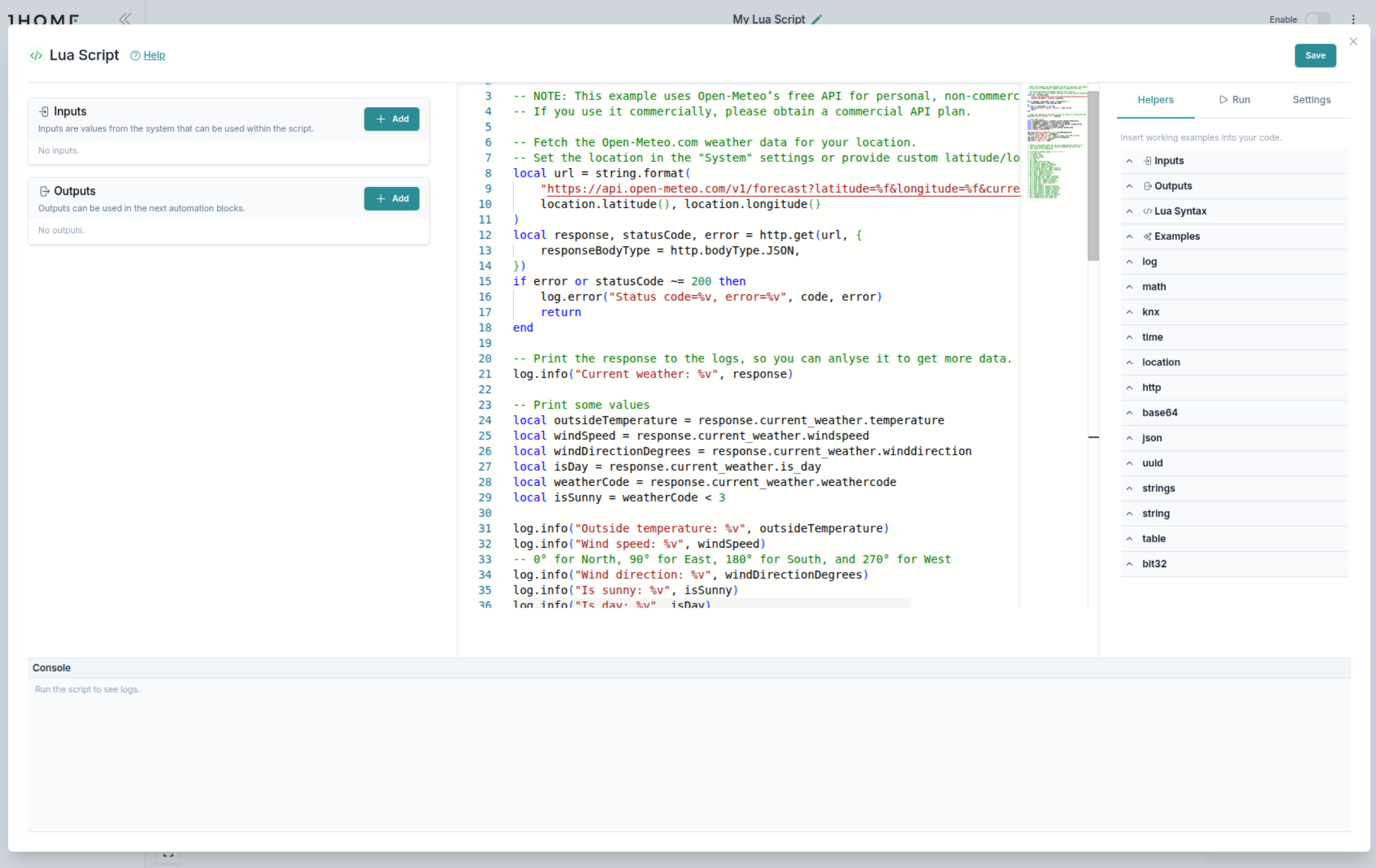
Weather example shown in the Lua Editor.